Listen to the Main Text of a Wikipedia Article

Use a human-recorded Spoken Wikipedia track when the article provides one. For current text or an article without a recording, CastReader reads the visible headings and paragraphs while leaving most navigation, reference lists, and page furniture out of the queue.

Main Article TextReferences SkippedParagraph HighlightingTables on Demand

To listen to Wikipedia, first check whether the article links to a human-recorded Spoken Wikipedia version. If it does not, or if you need the current article text, open the page in Chrome or Edge and start CastReader. It reads the main headings and paragraphs; infoboxes, tables, footnotes, reference lists, and navigation may be skipped, so select a specific passage when those details matter.

Choose What Part of Wikipedia Needs to Be Spoken

Article prose, human recordings, tables, references, and other languages do not behave the same way.

Main article: read headings and paragraphs

CastReader targets Wikipedia's central article container and reads prose in section order. This is the useful default for an overview, biography, history, or conceptual explanation.

Spoken article: prefer the human recording

Some Wikipedia pages link to community-recorded audio. Use that version when available and current enough for your purpose; it may sound more natural but can lag behind later edits.

Table or infobox: select only what you need

Tables and infoboxes often lose meaning when flattened into speech. They are excluded from the default queue on supported Wikipedia layouts; select one row or fact when it is important.

Other language: check the voice before a long session

English and Mandarin Chinese voices are the most established CastReader catalog paths. Other available languages remain Beta or Lab, so pronunciation and synchronization quality can vary.

How to Read a Wikipedia Article Aloud

  1. 1

    Open the full article page

    Use the canonical /wiki/ article, not a search-results page, category list, or mobile preview card.

  2. 2

    Check for a spoken recording

    If Wikipedia provides an audio link, decide whether you prefer the human recording or the latest visible text. Recordings can be easier to hear but may not reflect subsequent edits.

  3. 3

    Start CastReader for the article body

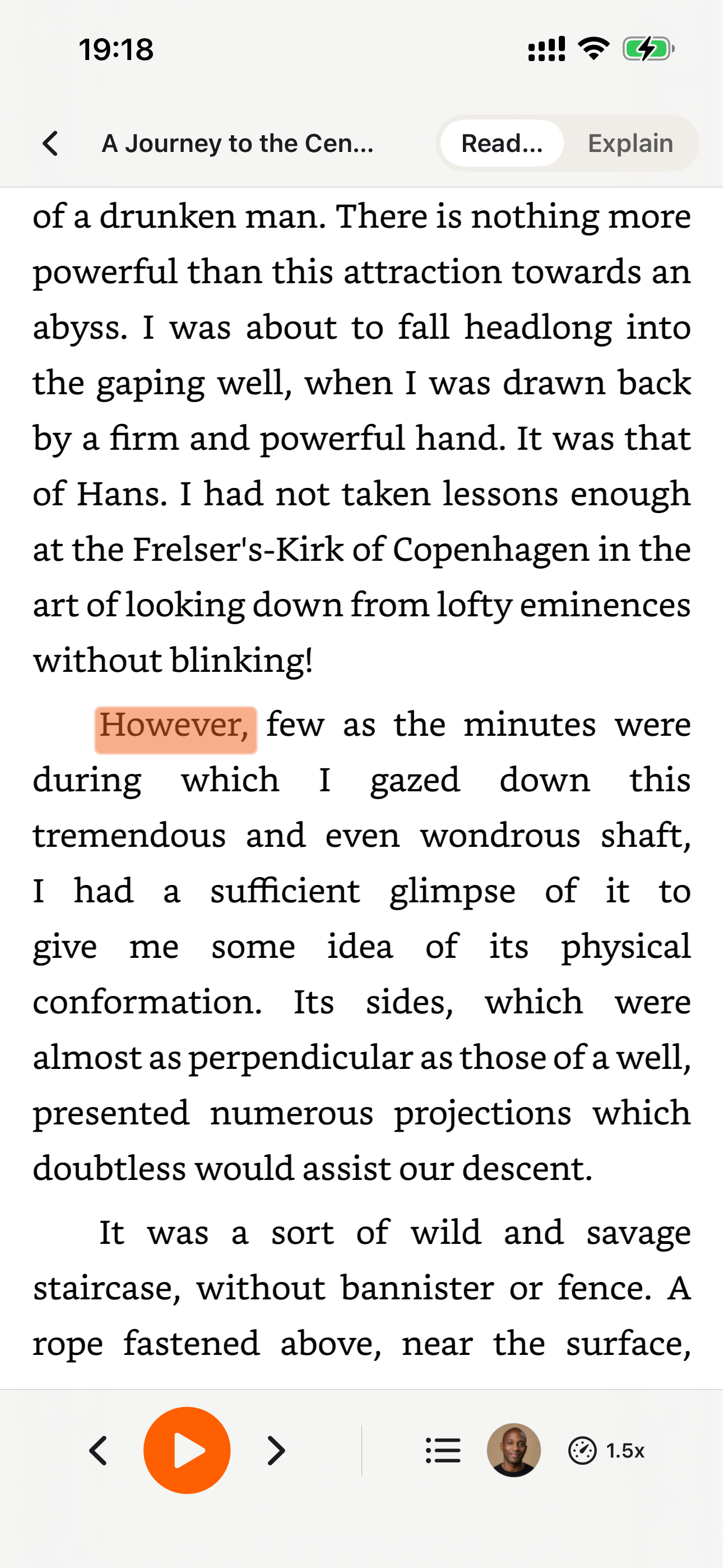
    The reading queue follows the visible headings and paragraphs and highlights the current passage as playback moves through the page.

  4. 4

    Select facts outside the prose

    For an infobox value, pronunciation, table row, footnote, or citation, select that text and read it separately instead of adding the whole reference apparatus.

What a Wikipedia Text-to-Speech Reader Leaves Out

Wikipedia articles mix narrative prose with navigation, edit controls, citations, pronunciation guides, mathematical notation, tables, infoboxes, images, and reference lists. Reading every visible token would make the audio harder to understand, so CastReader's supported Wikipedia rules prioritize the main prose and section headings.

That filtering is a tradeoff, not a guarantee of completeness. A table may contain the exact date you need, a footnote may qualify a claim, and an infobox may summarize the subject more efficiently than the article. When a detail matters, stop the main narration, select that passage, and hear it separately while keeping the visual context on screen.

Wikipedia changes continuously. A community recording may preserve an older revision, while browser text-to-speech reads the version currently rendered in your tab. For study or citation work, use audio to understand the article, then return to the written page and sources before relying on a claim.
Wikipedia Read-Aloud Questions

Answers for spoken recordings, current text, references, tables, pronunciation, other languages, and mobile devices.

How do I listen to a Wikipedia article?

Check the article for a human-recorded audio link first. Otherwise open the full page in Chrome or Edge and start CastReader to hear the main headings and paragraphs.

Does Wikipedia already have spoken articles?

Some articles have community-recorded Spoken Wikipedia versions, but availability varies. A recording may also predate later edits, so use browser text-to-speech when you need the current visible revision.

Does CastReader read Wikipedia references and footnotes?

The default Wikipedia workflow minimizes citation markers, footnotes, and reference lists so the main article remains listenable. Select a specific note or source when it is important to your question.

Can it read a Wikipedia infobox or table?

Not reliably as part of the main queue because row and column relationships often disappear in speech. Select the exact row, value, or cell you need and read it separately.

Why was a pronunciation or formula skipped?

Pronunciation templates, IPA, equations, and mathematical notation are not ordinary prose and may be excluded or spoken poorly. Keep the visual page open and use a specialist pronunciation or math tool when exact rendering matters.

Can I listen to Wikipedia in another language?

Yes, when a matching CastReader voice is available, but quality varies. English and Mandarin Chinese are GA; other listed languages remain Beta or Lab, so test the opening paragraph before a long article.

Can I listen to Wikipedia on mobile?

The CastReader browser extension is for desktop Chrome and Edge. On mobile, use a Spoken Wikipedia recording when available or the phone's built-in accessibility speech controls.

Is Wikipedia reading free in CastReader?

CastReader is free to start with daily allowances. Pro provides higher usage limits and additional voice and explanation access; see the pricing page for current limits.

Listen on Your Phone

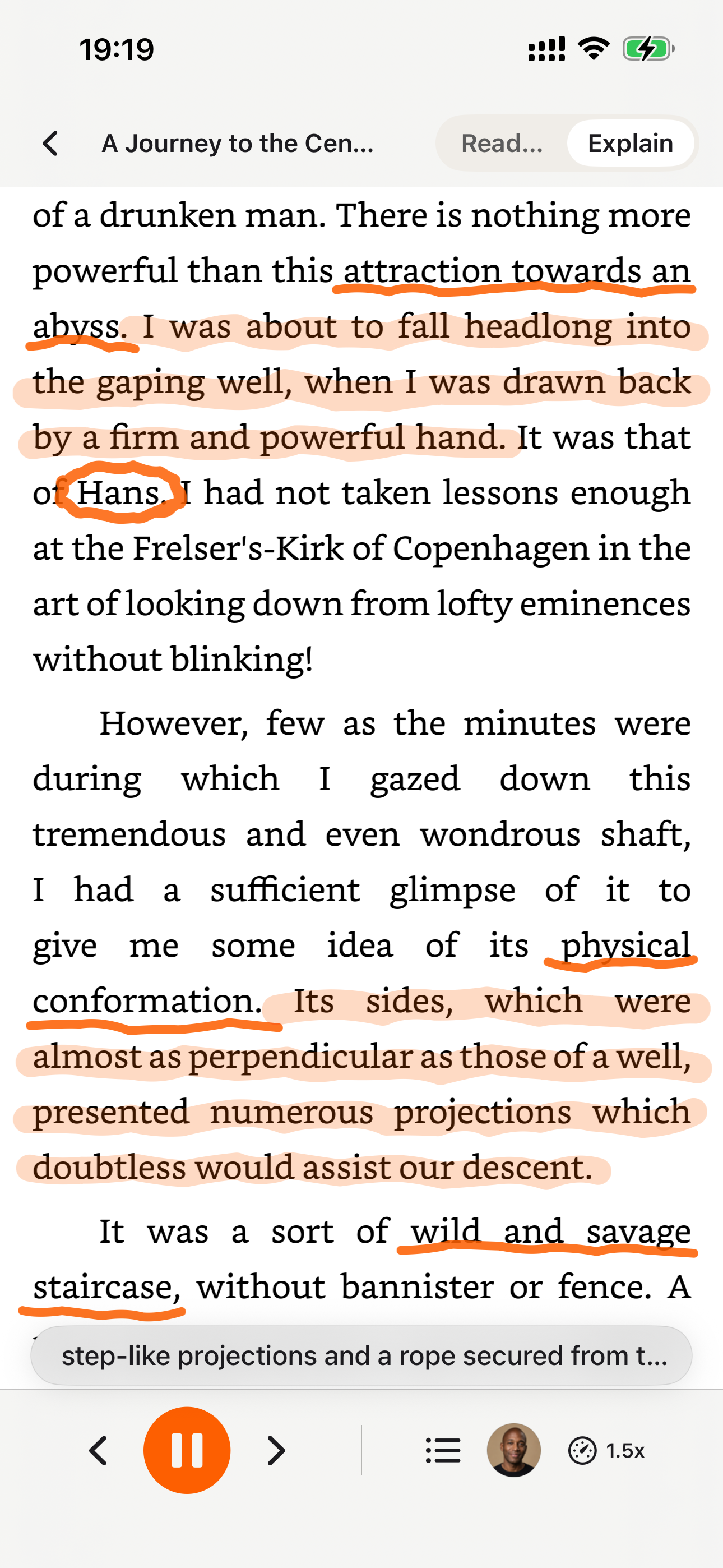
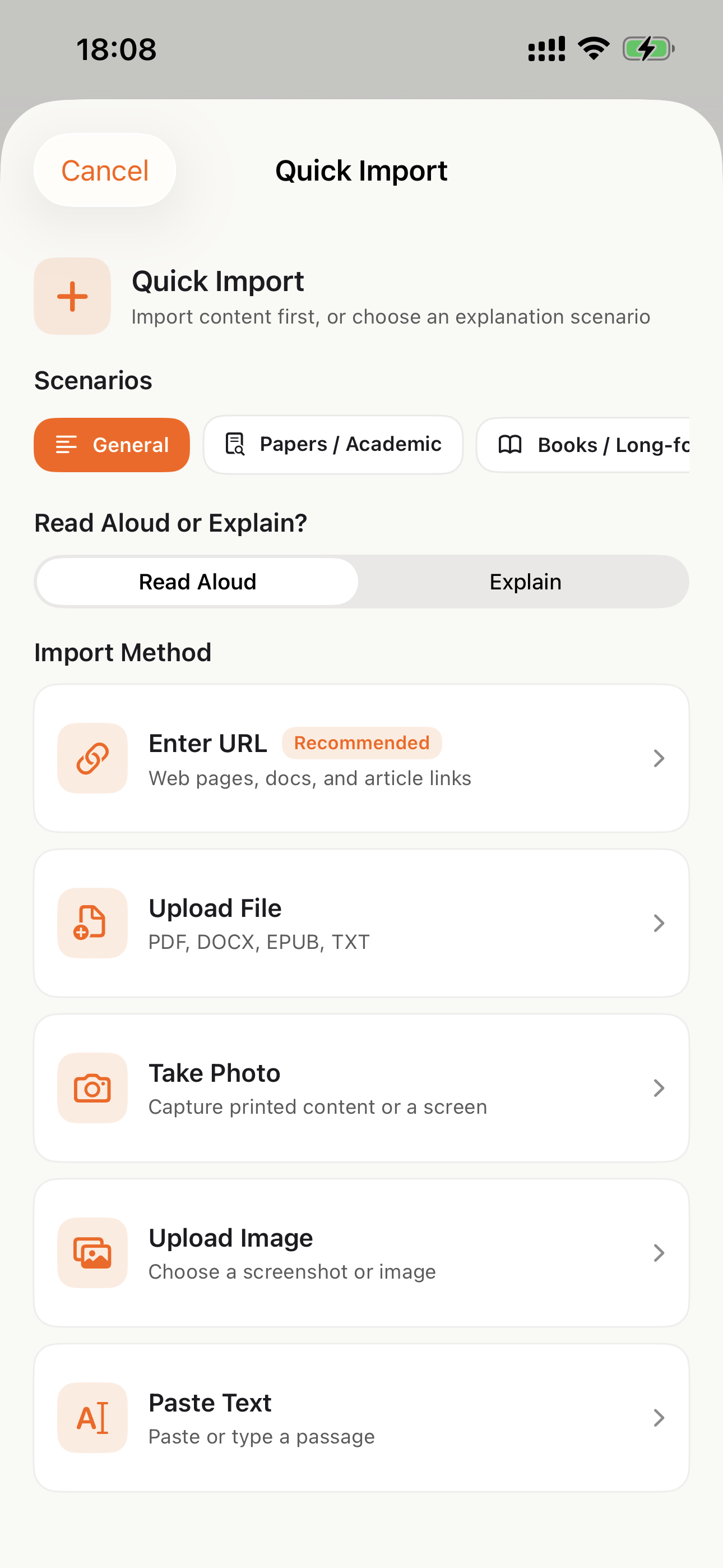
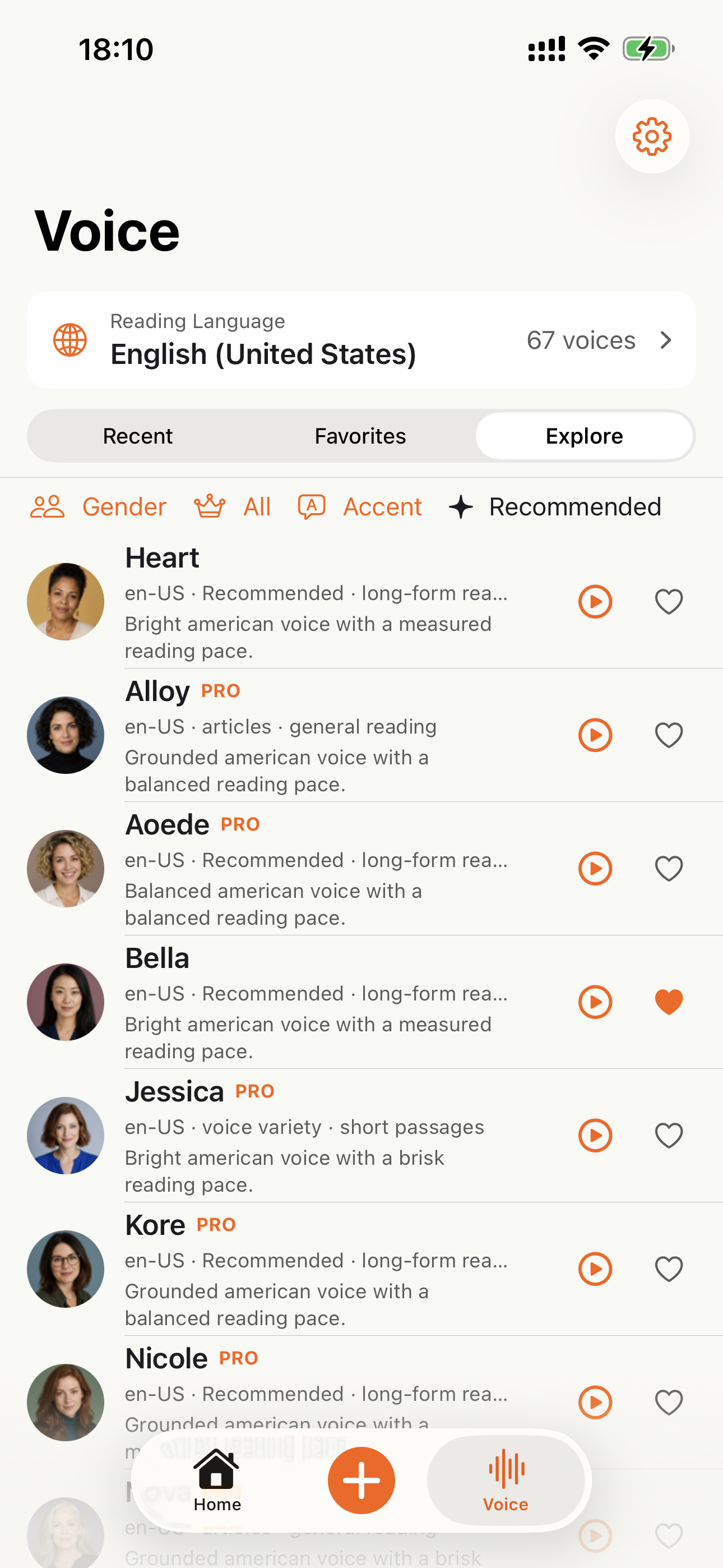
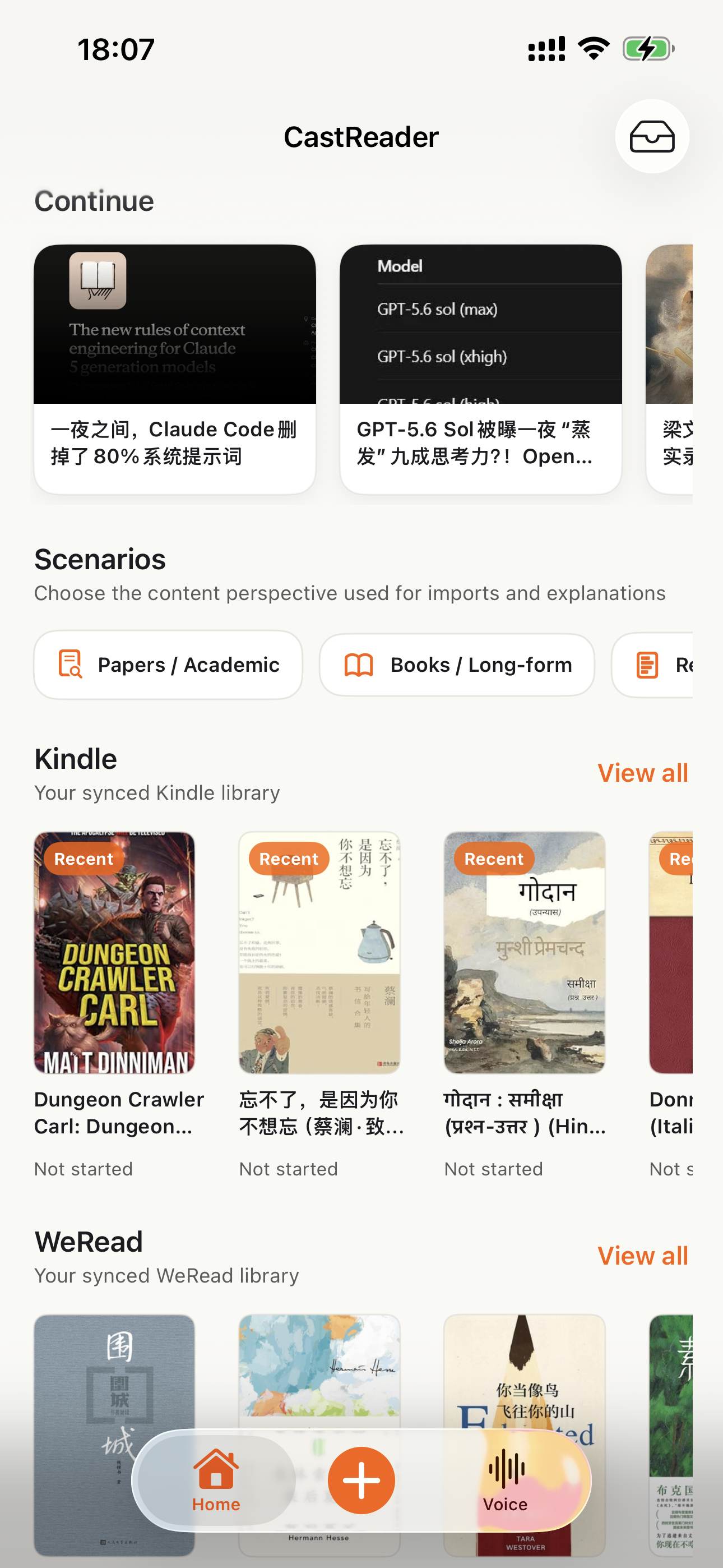
Download the CastReader app to listen to your uploaded documents anywhere.

Explore books
Book details
Reading experience

Why TTS Matters in 2026

Hard numbers — not vibes — from authoritative sources

$2.22 billion

US audiobook sales in 2024, up 13% year-over-year (Publishers Weekly / Audio Publishers Association)

Source →

51%

of US adults have listened to an audiobook in 2025 — roughly 134 million people (APA Consumer Survey 2025)

Source →

2.2 billion

people globally with near- or far-vision impairment (WHO Fact Sheet, 2024). TTS is the primary access path for digital reading content.

Source →

78%

of audiobook listeners multitask while listening — commute, chores, exercise (Audiolibrix Great Audiobook Survey, 2024)

Source →

27.2 minutes

average single-trip US commute in 2024, up from 26.8 (US Census ACS via Statista). That's nearly an hour each day of audio-only time.

Source →

effect size 0.35

measured comprehension lift from TTS for reading-disabled students across 22 studies (Wood, Moxley, Tighe & Wagner, Journal of Learning Disabilities, 2018)

Source →

15.5 million

US adults with ADHD per CDC 2024 — about half diagnosed in adulthood (CDC MMWR, October 2024)

Source →

What Readers Say — Including the Critical Reviews

Every Chrome Web Store review below is verifiable at the link in each card. We don't hide negative feedback — we answer it within 24 hours.

★★★★★
This is 1 of the best TTS and its smooth. If this is truly free i'll keep this 100%. Every other TTS says its free but has a secret. They interrupt or they just say better ai voices pay. But i like this voice. I've tried loads and this is 1 of the best ones that actually says free.
Jordan · Chrome Web Store
★★★★★
Works perfectly on vivaldi. One suggestion though. I wish it had a play button appear next to a paragraph when we hover over it. Just like in the case of speechify.
Loic COBBINA · Chrome Web Store
★★★★★
Extremely user friendly short keys. Placed forward backward and speed up down as Natural as it could be. Voices are great and smooth. I would recommend it over many hyped products.
grann tosif · Chrome Web Store
★★★★★
At the very least it's better than many paid TTS models. Still not as good as ElevenReader or LAP, but maybe the best free model for TTS.
eclpse_ · Chrome Web Store
★★★★★
So glad I can finally switch voices! The default was fine but I found one I actually enjoy listening to for hours. Small thing, huge difference.
patrick chiang · Chrome Web Store
★★★★★
Best one i found, user friendly, and great voice over.
Mohab A · Chrome Web Store
★★★★★
ChatGPT's long answers are finally listenable. Let it generate while I listen — doubles my productivity. Love the inline button next to each response.
young D · Chrome Web Store
★★★★★
I tried using this add-on to listen to an ebook on the O'Reilly learning platform, and it works smoothly. However, it always restarts from the first paragraph whenever I scroll or select a different paragraph. Please consider adding a bookmark or checkpoint feature so users can mark where the reading should begin.

↪ Founder reply

Replied by CastReader founder Yan Xu within 48 hours: acknowledged the issue, shipped a bookmark feature in the following release. Reviewer's verbatim feedback drove the v1.2 roadmap.

Hedi · Chrome Web Store
★★★★
Need to highlight text and select it.
Vivian Le · Chrome Web Store
★★★★
Hard to select text.

↪ Founder reply

Replied by CastReader founder Yan Xu within 24 hours: apologized, asked which site/browser the issue occurred on, provided a workaround using the keyboard shortcut, and offered direct support at support@castreader.com.

David Smolinski · Chrome Web Store

Read all 28 reviews on Chrome Web Store

Recent Updates

We re-test, re-write, and ship continuously. Every entry has a real date.

  1. Site-wide trust signals refresh

    Rewrote landing pages with verbatim Chrome Web Store testimonials, real audiobook market data, and tested-12-extensions methodology. Every claim now has a sourceable link.

  2. Native mobile listening

    CastReader provides native apps for iPhone and Android; Android downloads are available directly from Google Play.

  3. Technical deep-dive published

    Wrote up the OCR pipeline: how CastReader handles Amazon's 184 random font alphabets and 361 unique glyphs per Kindle book. Shared in dev.to.

  4. Mobile Kindle Read Aloud page added

    The phone app flow now has its own landing page for bookshelf sync, Read Aloud, synced highlighting, auto-scroll, background playback, and resume progress.

  5. Featured on Product Hunt

    Ranked #10 in Daily, 99 upvotes, 4 community comments shaped the v1.2 roadmap.

  6. Voice quality upgrade — Kokoro AI

    Switched from older TTS engines to Kokoro neural voices. User reviews shifted from 'usable but robotic' to 'enjoy listening for hours' (verbatim from review by patrick chiang).

  7. First wave of extraction reliability improvements

    OCR success rate improved from 78% to 89% on English-language Kindle books. Multi-column page detection added for academic PDFs.

Why This Exists

I built CastReader because I owned hundreds of Kindle books and couldn't listen to them on my morning runs without buying separate Audible copies. The technical problem — Amazon's Cloud Reader font encryption — turned out to be solvable with OCR. The product problem — making it actually pleasant across phones, desktops, and 9 supported languages — took two years of iteration. We're a small team. I answer every Chrome Web Store review personally (see testimonials above — including the 3-star and 1-star ones). If something's broken or missing, email support@castreader.com.

— Yan Xu, founder

Last reviewed: · CastReader Team — reviewed against 2025 testing data

Use Audio for the Article, Then Verify the Details

Listen to the main prose, select structured facts on demand, and return to the written sources before citing a claim.

Any website· Kindle / Google Docs / Notion· PDF / EPUB / DOCX· 9 languages · German included

Official App Store and Google Play downloads · Chrome, Edge, and Firefox extensions

How to Listen to Any Wikipedia Article | CastReader