“This is 1 of the best TTS and its smooth. If this is truly free i'll keep this 100%. Every other TTS says its free but has a secret. They interrupt or they just say better ai voices pay. But i like this voice. I've tried loads and this is 1 of the best ones that actually says free.”
How to Read VS Code Aloud Without a Fake One-Click Fix
VS Code supports screen readers, while macOS can speak selected editor text. For occasional prose, use the operating-system route; for full keyboard navigation, enable VS Code's accessibility mode. CastReader does not currently provide a native VS Code or Mac integration.
To hear selected VS Code text on a Mac, turn on System Settings → Accessibility → Read & Speak → Speak selection, select prose in the editor, and press the configured shortcut; Apple's default is Option-Esc. If you use a screen reader, VS Code officially supports VoiceOver, NVDA, JAWS, and Orca and can enter Screen Reader Optimized mode. A browser extension cannot read inside the desktop editor, so move only authorized prose to a supported browser when those built-in routes do not fit.
Choose the Route That Matches the Job
Reading a README paragraph, navigating the editor without sight, and reviewing source code are different tasks. Use the smallest tool that solves the actual one.
Mac: speak a selection
Turn on Read & Speak, select a paragraph in VS Code, and use the configured shortcut. This is the quickest route for comments, Markdown, and chat responses.
Screen-reader navigation
Use VoiceOver on macOS, NVDA or JAWS on Windows, or Orca on Linux. VS Code can optimize the editor, terminal, suggestions, and diagnostics for screen readers.
Accessible View for dense output
Open VS Code's Accessible View for hovers, notifications, comments, terminal output, chat responses, inline completions, and other difficult panels.
Review diffs as text
The Accessible Diff Viewer presents changes in a unified format, which is often easier to navigate and hear than two visual panes.
Read prose, inspect code
TTS is effective for documentation, comments, issue text, and AI explanations. Raw punctuation-heavy code is usually faster to inspect with editor navigation and diagnostics.
Keep private code private
System speech and an approved screen reader are safer defaults for confidential repositories. Do not paste proprietary code into an unapproved web service just to hear it.
Which VS Code Reading Method Should You Use?
Start with the method in the middle column; switch only when its limitation blocks the task.
| Need | Best first option | Important limit |
|---|---|---|
| Hear one Markdown paragraph | macOS Speak selection | Requires selectable text and a Mac |
| Navigate all of VS Code by audio | Supported screen reader | Takes time to learn navigation commands |
| Hear chat, terminal, or hover content | VS Code Accessible View | Designed for accessibility, not continuous audiobook playback |
| Listen to a long public document | Open the document in a browser reader | Do not move confidential or licensed text without permission |
| Review raw source code | Editor navigation plus diagnostics | Literal TTS may overread punctuation and symbols |
Read Selected VS Code Text on a Mac
- 1
Enable Speak selection
Open System Settings → Accessibility → Read & Speak, turn on Speak selection, and review its voice, highlighting, controller, and keyboard shortcut settings.
- 2
Select a useful unit
In VS Code, select a complete paragraph from Markdown, a comment, a pull-request description, or an AI chat response. Avoid mixing code and prose when clarity matters.
- 3
Start and control speech
Press the configured shortcut. Apple's default is Option-Esc. Use the speech controller to pause, change rate, or move by sentence when it is enabled.
- 4
Use accessibility help if selection fails
Open VS Code's Accessibility Help for the focused editor or panel. Screen-reader users can explicitly set Editor: Accessibility Support to on if automatic detection fails.
What to Do When VS Code Will Not Read the Text You Need
Start by separating casual listening from screen-reader access. Casual listening means hearing a README, docstring, pull-request summary, or long chat answer while your eyes rest. On macOS, Speak selection is built for that narrow task. Full nonvisual access means navigating files, suggestions, diagnostics, terminals, diffs, and controls by audio; use a supported screen reader and VS Code's accessibility features for that job.
If the Mac shortcut makes a sound but says nothing, confirm that text is actually selected and that focus is in the editor. Then open Read & Speak settings and test the system voice. Some custom editor surfaces or extension webviews expose text differently. VS Code's Accessible View can convert supported hover, comment, terminal, notification, and chat surfaces into a form intended for line-by-line inspection.
When a screen reader is attached, VS Code normally detects it and displays Screen Reader Optimized in the status bar. If it does not, open Settings and set Editor: Accessibility Support to on. VS Code's official accessibility guide lists VoiceOver, NVDA, JAWS, and Orca as tested readers. Use Accessibility Help in the current context to learn the relevant editor, terminal, notebook, or chat controls.
For pull requests and code review, do not ask TTS to narrate an entire visual diff without structure. The Accessible Diff Viewer presents changes in a unified patch format and supports moving among changed lines. Listen to the human explanation and comments, then inspect identifiers, punctuation, indentation, and exact code visually or with screen-reader navigation. Speech is a second review channel, not a substitute for precise code inspection.
AI coding assistants add another common problem: long explanations may appear in chat panels that are awkward to select. VS Code's Accessible View supports chat responses and inline-completion information. If the content is public or yours to move, copying only the prose into a browser-based reader is another option. Never transfer secrets, customer data, private source code, or licensed material to an unapproved service.
CastReader's Chrome and Edge extension works inside supported browser pages; it does not currently install into or control the native VS Code desktop editor. It can help with web-hosted documentation, issue pages, and authorized text opened in the browser. For a short pasted passage, use the existing free text-to-speech page rather than expecting a desktop integration that has not shipped.
A good workflow uses speech where it improves comprehension: design notes, documentation, prose comments, issue descriptions, and explanations. It uses editor-native tools where precision matters: syntax, indentation, symbol names, diagnostics, and code navigation. This division avoids a stream of spoken punctuation while still reducing the amount of dense prose you must read visually.
If accessibility is required for work or study, test the complete path with the actual operating system, screen reader, extensions, terminal shell, and remote-development setup. Open Accessibility Help in every surface you rely on. Report reproducible VS Code accessibility issues through the official project, and ask your organization before installing extensions or sending repository content to external tools.
VS Code Read-Aloud Questions
Does VS Code have a built-in read-aloud button?
VS Code does not provide a general audiobook-style button for every editor selection. It does provide extensive screen-reader support, Accessibility Help, Accessible View, and an Accessible Diff Viewer. On a Mac, the operating system's Speak selection feature is the simplest way to hear a selected prose passage.
How do I read selected VS Code text aloud on a Mac?
Open System Settings → Accessibility → Read & Speak, turn on Speak selection, and choose a voice and shortcut. Select a complete paragraph in VS Code and press the shortcut; Apple's default is Option-Esc. If nothing is spoken, confirm selection and editor focus first.
Which screen readers does VS Code support?
VS Code's official documentation lists NVDA and JAWS on Windows, VoiceOver on macOS, and Orca on Linux as tested screen readers. Automatic detection can enable Screen Reader Optimized mode, or you can explicitly set Editor: Accessibility Support to on.
How can I hear Copilot or other VS Code chat responses?
Open Accessible View while the chat response is focused, or use a supported screen reader. On macOS, selectable chat prose may also work with Speak selection. Copy text to a browser reader only when you are allowed to move it and it contains no sensitive repository data.
Should I use text to speech for raw source code?
Usually only for short comments or carefully selected expressions. Literal speech can make punctuation, casing, indentation, and similar identifiers hard to distinguish. Use VS Code navigation, diagnostics, and a screen reader for precise code; use TTS mainly for surrounding prose and explanations.
Can a Chrome extension read the VS Code desktop app?
No. A browser extension runs in supported browser pages, not inside the native VS Code desktop window. It can read web documentation or authorized text opened in Chrome or Edge, but it should not be described as a native editor integration.
What is VS Code Accessible View?
Accessible View presents supported hovers, notifications, comments, terminal output, chat responses, inline completions, and other content in a form designed for detailed keyboard and screen-reader navigation. Open Accessibility Help in the current context to find the correct command and shortcuts for your platform.
Is it safe to paste code into an online TTS tool?
Only when the code is yours to share and the service is approved for that data. Do not paste credentials, customer data, proprietary repositories, embargoed work, or licensed source into an external service. Prefer operating-system speech or an approved screen reader for confidential material.
Related Reading Workflows
Free Text to Speech
Hear an authorized passage in a browser when moving the text is appropriate.
Read This to Me
Choose a working route based on whether the source is a webpage, document, or mobile text.
Text to Speech for Students
Build a study workflow around comprehension, retrieval, and accessible source material.
Listen on Your Phone
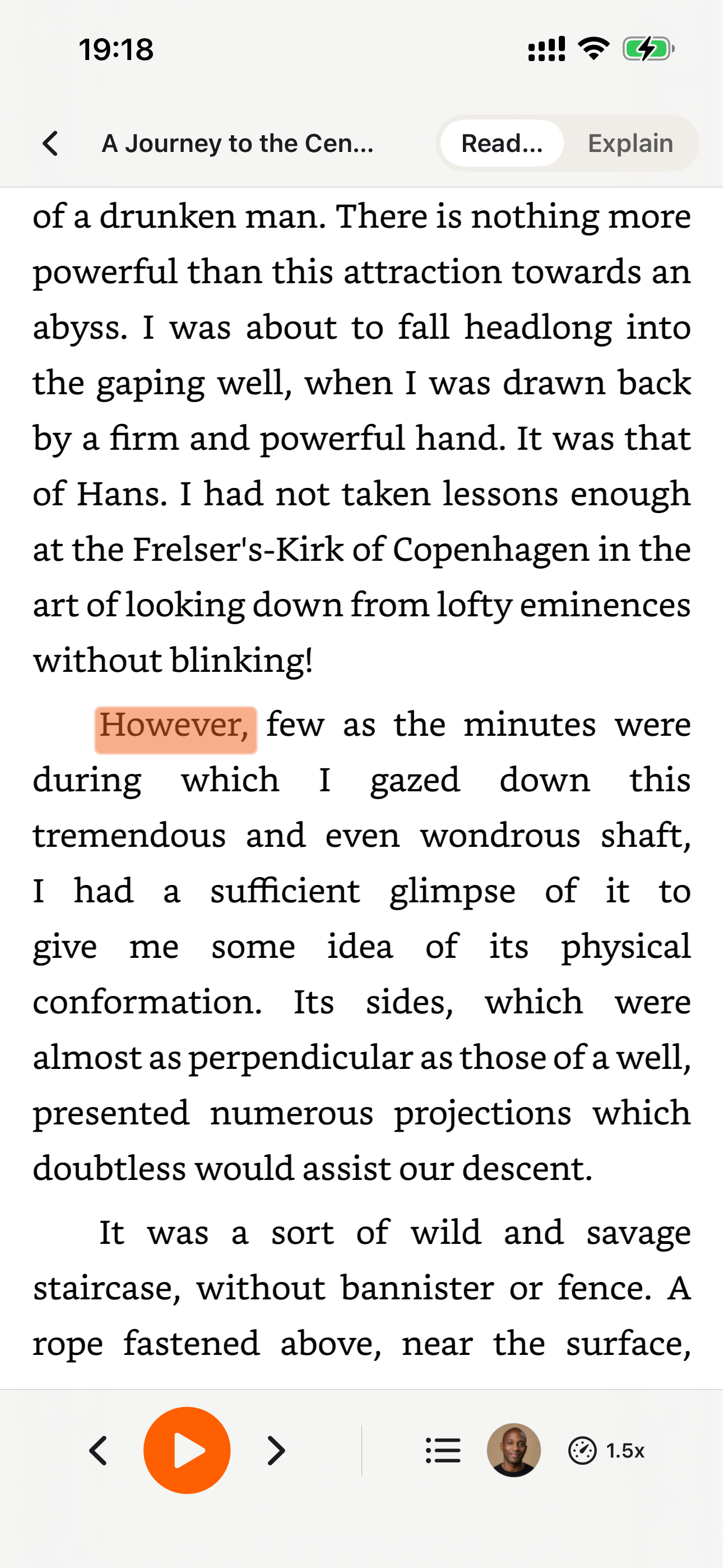
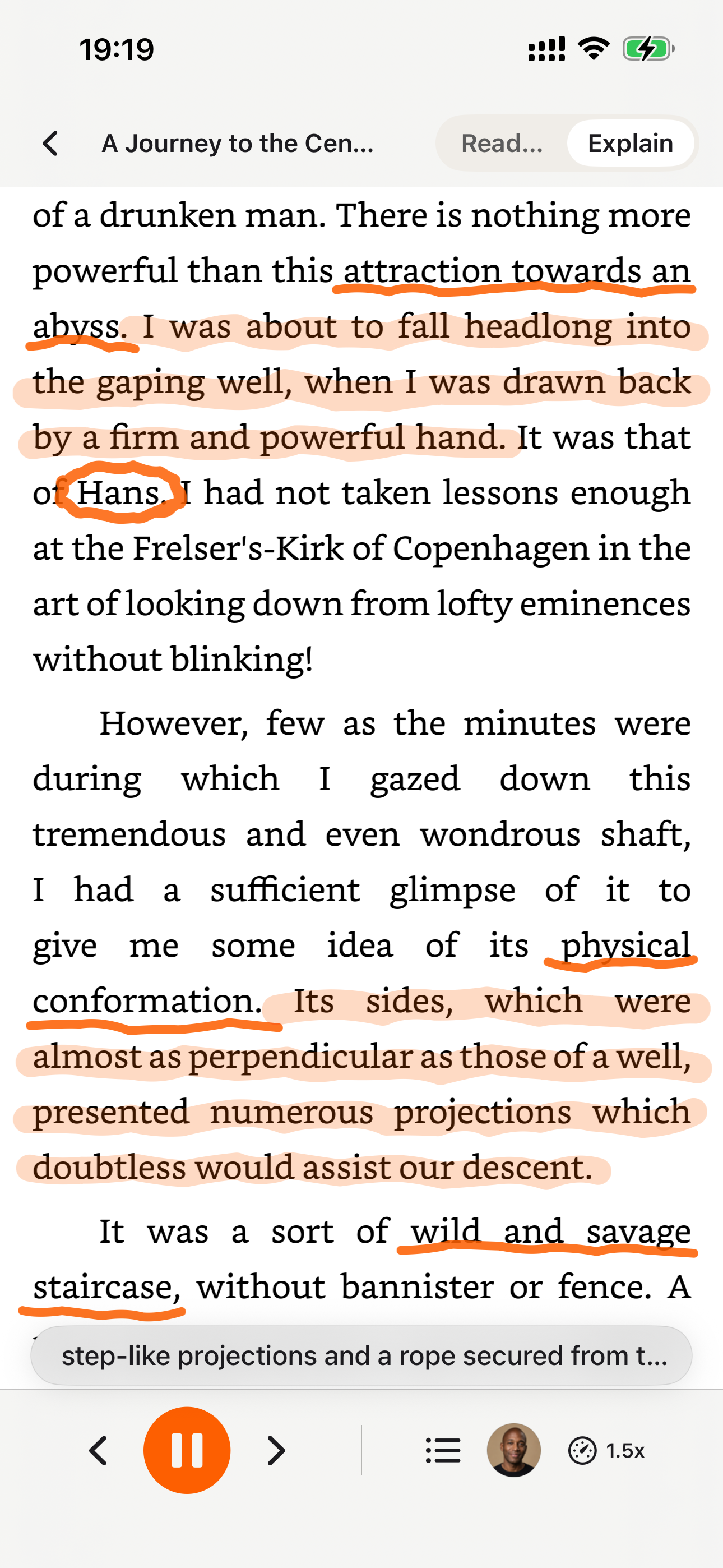
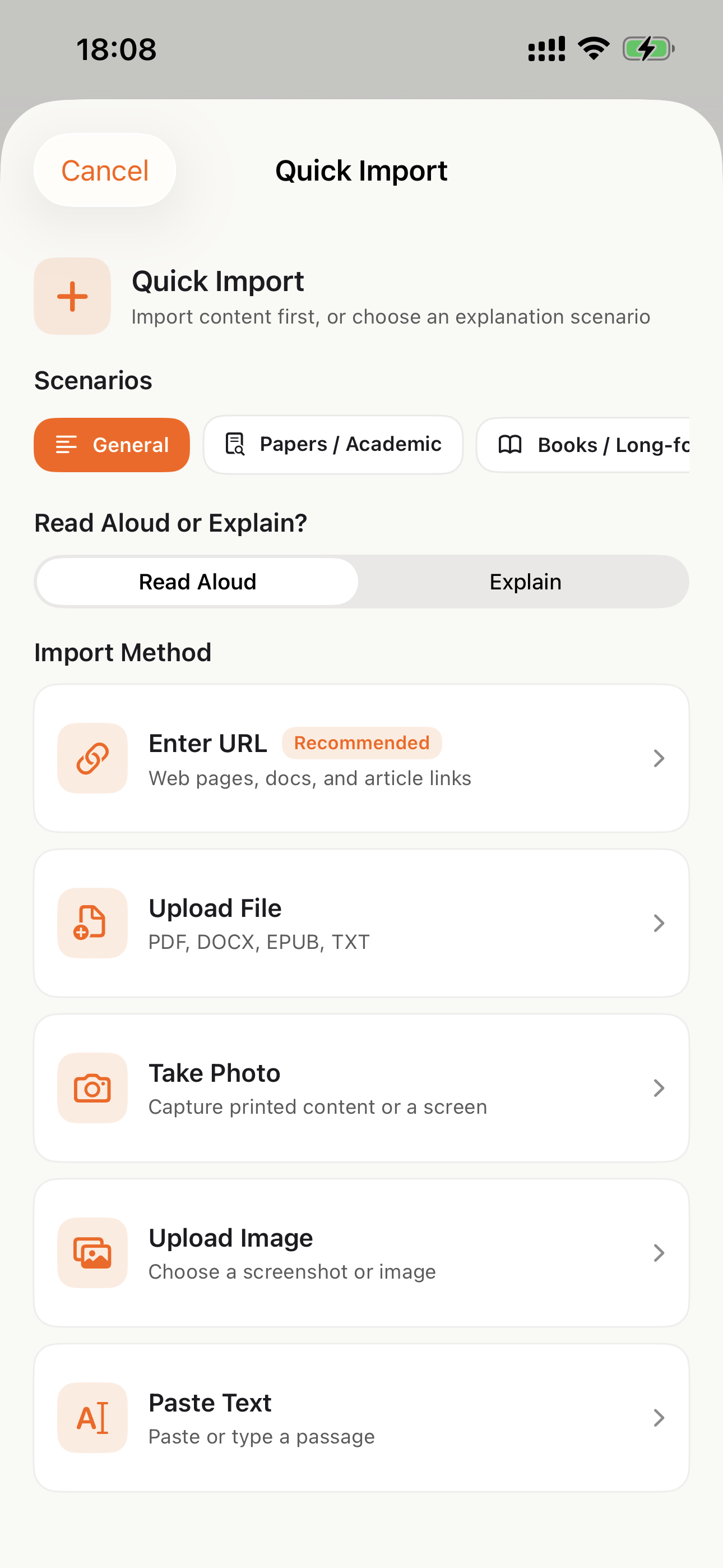
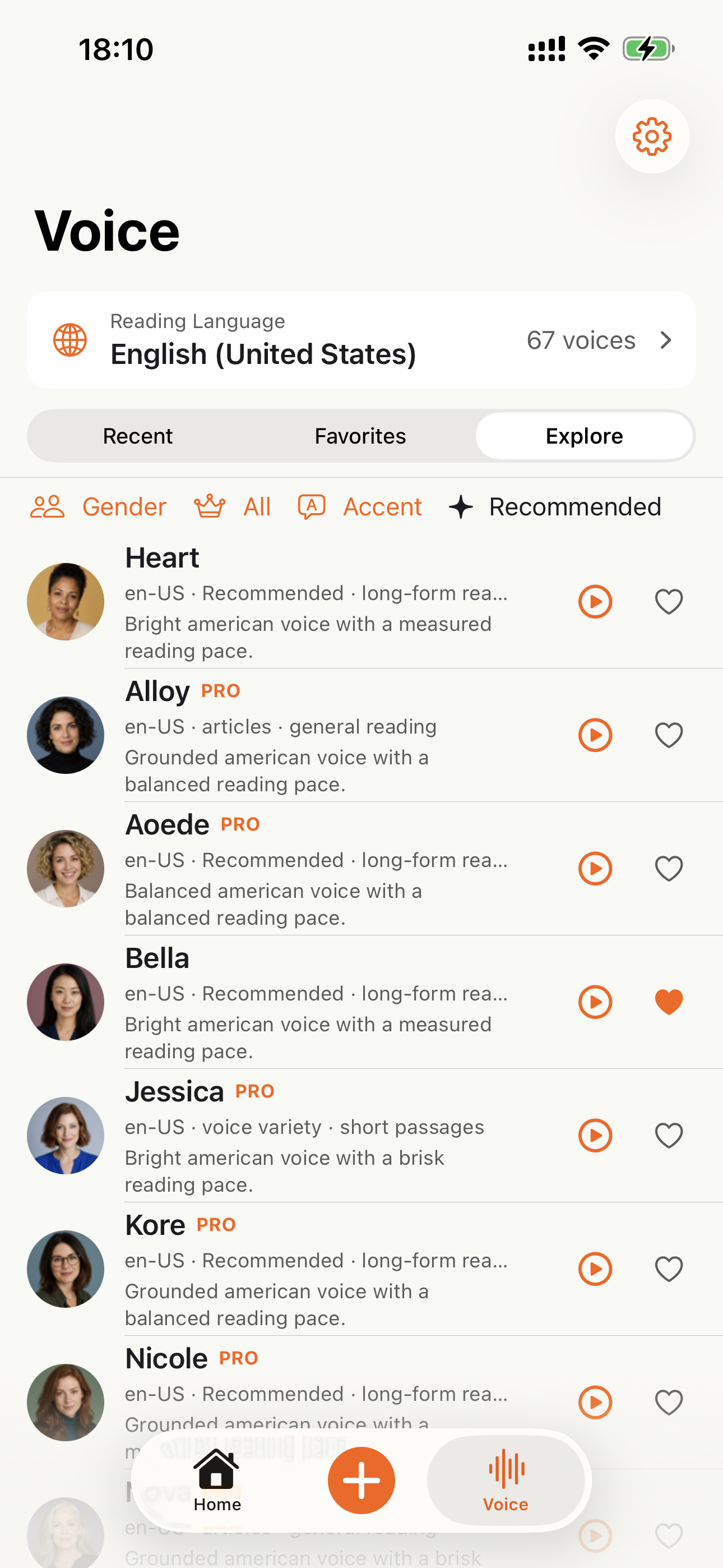
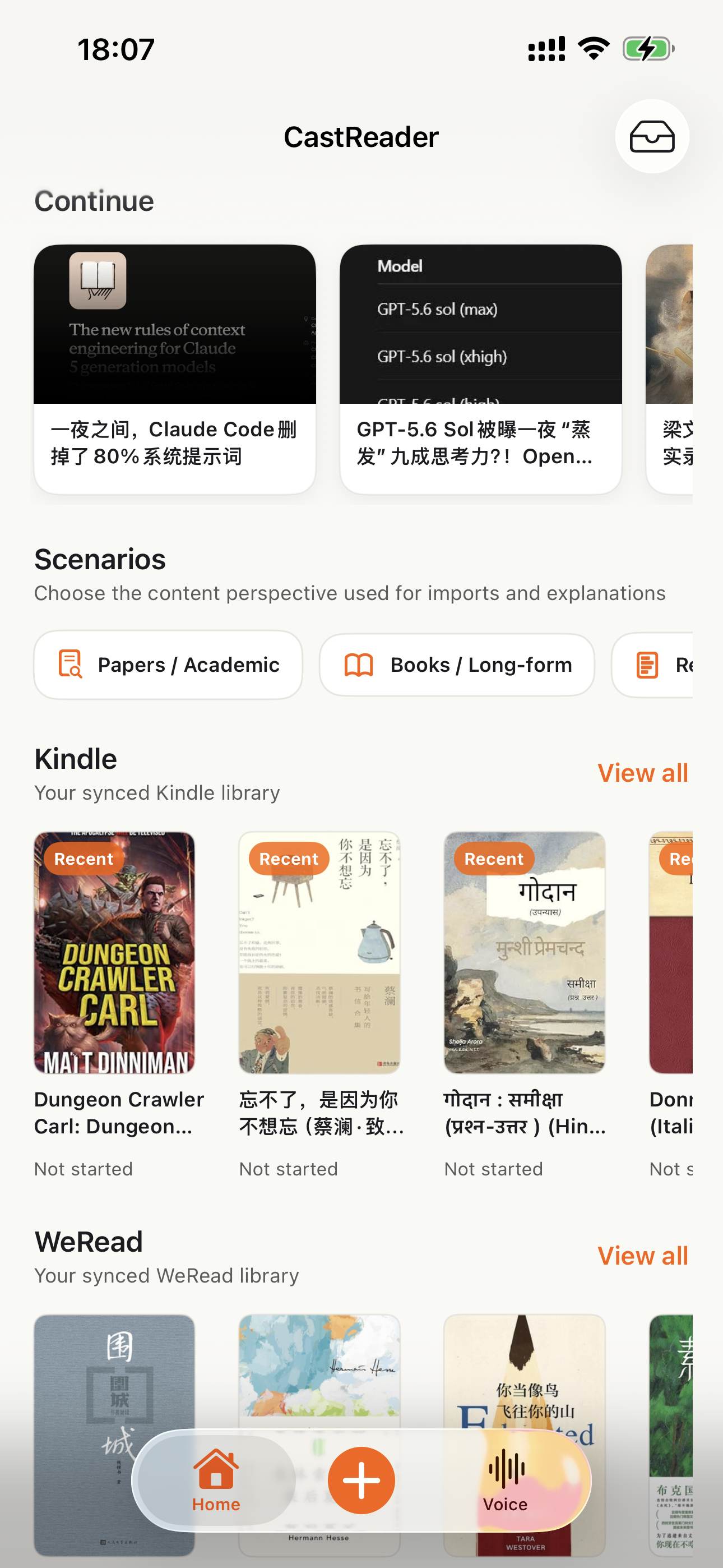
Download the CastReader app to listen to your uploaded documents anywhere.


Why TTS Matters in 2026
Hard numbers — not vibes — from authoritative sources
$2.22 billion
US audiobook sales in 2024, up 13% year-over-year (Publishers Weekly / Audio Publishers Association)
Source →51%
of US adults have listened to an audiobook in 2025 — roughly 134 million people (APA Consumer Survey 2025)
Source →2.2 billion
people globally with near- or far-vision impairment (WHO Fact Sheet, 2024). TTS is the primary access path for digital reading content.
Source →78%
of audiobook listeners multitask while listening — commute, chores, exercise (Audiolibrix Great Audiobook Survey, 2024)
Source →27.2 minutes
average single-trip US commute in 2024, up from 26.8 (US Census ACS via Statista). That's nearly an hour each day of audio-only time.
Source →effect size 0.35
measured comprehension lift from TTS for reading-disabled students across 22 studies (Wood, Moxley, Tighe & Wagner, Journal of Learning Disabilities, 2018)
Source →15.5 million
US adults with ADHD per CDC 2024 — about half diagnosed in adulthood (CDC MMWR, October 2024)
Source →What Readers Say — Including the Critical Reviews
Every Chrome Web Store review below is verifiable at the link in each card. We don't hide negative feedback — we answer it within 24 hours.
“Works perfectly on vivaldi. One suggestion though. I wish it had a play button appear next to a paragraph when we hover over it. Just like in the case of speechify.”
“Extremely user friendly short keys. Placed forward backward and speed up down as Natural as it could be. Voices are great and smooth. I would recommend it over many hyped products.”
“At the very least it's better than many paid TTS models. Still not as good as ElevenReader or LAP, but maybe the best free model for TTS.”
“So glad I can finally switch voices! The default was fine but I found one I actually enjoy listening to for hours. Small thing, huge difference.”
“Best one i found, user friendly, and great voice over.”
“ChatGPT's long answers are finally listenable. Let it generate while I listen — doubles my productivity. Love the inline button next to each response.”
“I tried using this add-on to listen to an ebook on the O'Reilly learning platform, and it works smoothly. However, it always restarts from the first paragraph whenever I scroll or select a different paragraph. Please consider adding a bookmark or checkpoint feature so users can mark where the reading should begin.”
↪ Founder reply
Replied by CastReader founder Yan Xu within 48 hours: acknowledged the issue, shipped a bookmark feature in the following release. Reviewer's verbatim feedback drove the v1.2 roadmap.
“Need to highlight text and select it.”
“Hard to select text.”
↪ Founder reply
Replied by CastReader founder Yan Xu within 24 hours: apologized, asked which site/browser the issue occurred on, provided a workaround using the keyboard shortcut, and offered direct support at support@castreader.com.
Recent Updates
We re-test, re-write, and ship continuously. Every entry has a real date.
Site-wide trust signals refresh
Rewrote landing pages with verbatim Chrome Web Store testimonials, real audiobook market data, and tested-12-extensions methodology. Every claim now has a sourceable link.
Native mobile listening
CastReader provides native apps for iPhone and Android; Android downloads are available directly from Google Play.
Technical deep-dive published
Wrote up the OCR pipeline: how CastReader handles Amazon's 184 random font alphabets and 361 unique glyphs per Kindle book. Shared in dev.to.
Mobile Kindle Read Aloud page added
The phone app flow now has its own landing page for bookshelf sync, Read Aloud, synced highlighting, auto-scroll, background playback, and resume progress.
Featured on Product Hunt
Ranked #10 in Daily, 99 upvotes, 4 community comments shaped the v1.2 roadmap.
Voice quality upgrade — Kokoro AI
Switched from older TTS engines to Kokoro neural voices. User reviews shifted from 'usable but robotic' to 'enjoy listening for hours' (verbatim from review by patrick chiang).
First wave of extraction reliability improvements
OCR success rate improved from 78% to 89% on English-language Kindle books. Multi-column page detection added for academic PDFs.
Why This Exists
I built CastReader because I owned hundreds of Kindle books and couldn't listen to them on my morning runs without buying separate Audible copies. The technical problem — Amazon's Cloud Reader font encryption — turned out to be solvable with OCR. The product problem — making it actually pleasant across phones, desktops, and 9 supported languages — took two years of iteration. We're a small team. I answer every Chrome Web Store review personally (see testimonials above — including the 3-star and 1-star ones). If something's broken or missing, email support@castreader.com.
— Yan Xu, founder
Last reviewed: · CastReader Team — reviewed against 2025 testing data
Listen to anything — free, on every device.
Add CastReader to Chrome / Edge, or get the iOS and Android apps. Free to start, with 9 read-aloud languages including German.
Browser extensions
Mobile apps
Official App Store and Google Play downloads · Chrome, Edge, and Firefox extensions